Install and verify
This page is for the person who looks after the Ignition gateway.
What you need
| You need | Details |
|---|---|
| Ignition | 8.1.33 or later in the 8.1 line (tested on 8.1.53), or 8.3.3 or later in the 8.3 line (tested on 8.3.10) |
| Gateway access | An administrator login to the gateway |
| The module file | The file for your Ignition line, from the releases page: Arifa-SMS-Notification-0.10.0-ignition-8.1.modl or Arifa-SMS-Notification-0.10.0-ignition-8.3.modl |
Back up the gateway first
Download a gateway backup from the gateway's backup page. On Ignition 8.1, go to Config > System > Backup/Restore and choose Download Backup. On Ignition 8.3, the backup page is at <gateway address>/app/platform/system/backup-restore/backup. Keep the file safe.
Once Arifa is configured, a gateway backup contains the stored Africa's Talking API key. Protect backups as you would any file that holds a live key.
Download
Download the .modl file of the latest release from the releases page. There is one file for each Ignition line. Choose the one that matches your gateway, because the two are not interchangeable. Only the latest release is supported.
Install the module
Both module files are signed with the same certificate. While you install, Ignition shows the certificate's Thumbprint, and it must read:
65 83 84 55 22 06 7C CC F9 C6 9B C6 F3 C6 41 98 3A 28 BD 20
- Ignition 8.1
- Ignition 8.3
-
Go to Config > System > Modules and choose Install or Upgrade a Module.
-
Select the
...-ignition-8.1.modlfile. -
Ignition shows the module's certificate, with the warnings "This certificate is self-signed" and "This module was not written by Inductive Automation". Both are expected. See why it says self-signed.
-
Compare the Thumbprint Ignition shows with the one above. If they differ, stop and do not install the file.
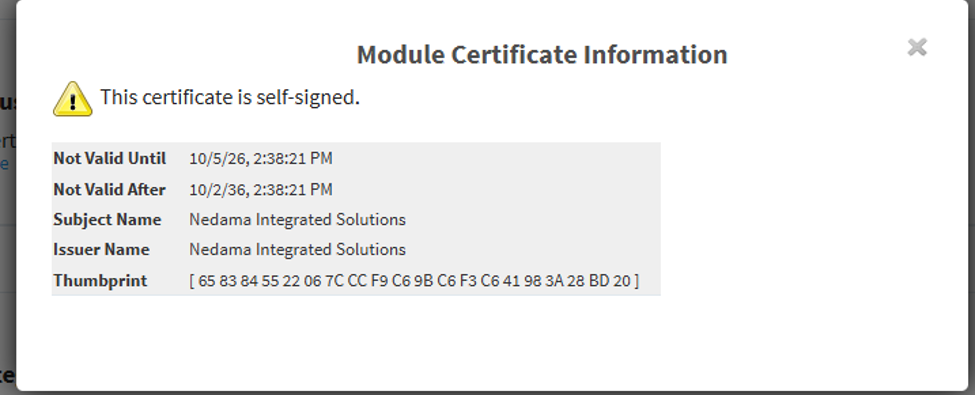
The certificate dialog. The Thumbprint on the last line must match the one above. -
Accept. Arifa SMS Notification is listed under Nedama Integrated Solutions as Running, with a Free licence and no trial countdown.

Arifa installed and running on Ignition 8.1.
-
Go to Platform > System > Modules, choose Install or Upgrade Module +, and select the
...-ignition-8.3.modlfile. -
Ignition 8.3 may list a self-signed module under Quarantined Modules, at the bottom of the page. If Arifa appears there, open its three-dot menu and resolve the certificate reason. See why it says self-signed.
-
On the installed module, open the three-dot menu and choose View Certificate. Compare the Thumbprint with the one above. If they differ, stop.
-
Restart the gateway if the page asks. Arifa SMS Notification is listed under Nedama Integrated Solutions as Active, with a Free licence.

Arifa installed and active on Ignition 8.3.
If you ever installed an unsigned test build, uninstall it, restart the Ignition service, and then install the signed module.
Why it says "self-signed"
Ignition checks the signature of every module when it is installed, and refuses a file that has been changed since it was signed.
Arifa is signed with a certificate issued by Nedama Integrated Solutions to itself, not by a certificate authority. That is what "self-signed" means, and it is why Ignition shows the warning. The thumbprint is how you check that the certificate is ours: the same thumbprint is published in the arifa-sms README.
Check the file before installing (optional)
To check a downloaded file before you install it, use tools/VerifyModule.java from the arifa-sms repository, on any machine with a JDK:
java tools/VerifyModule.java Arifa-SMS-Notification-0.10.0-ignition-8.3.modl
It ends with RESULT: OK and prints the certificate thumbprint, which must match the one above.
Upgrade
These steps install a newer Arifa release on the same Ignition line. To move a gateway from Ignition 8.1 to 8.3, see Upgrading from 8.1 to 8.3.
- Write down the settings of each Arifa profile, or take a screenshot of them.
- On the Modules page (Config > System > Modules on 8.1, Platform > System > Modules on 8.3), choose Install or Upgrade a Module (on 8.3, Install or Upgrade Module +), and select the new
.modlfile. If the gateway refuses it, uninstall Arifa first (below), restart the Ignition service, and install the new file. - Compare the thumbprint, as for a new install, and accept.
- Check that each Arifa profile still has its settings and shows Running. If a profile is missing, create it again from your notes, and choose it again on the pipeline's Notification block.
Uninstall
- Write down the settings of each Arifa profile, in case you install Arifa again later.
- To stop real SMS straight away, untick Enabled on the profile.
- On the Modules page (Config > System > Modules on 8.1, Platform > System > Modules on 8.3), uninstall Arifa SMS Notification.
Done when: Arifa SMS Notification is listed as Running on 8.1, or Active on 8.3, and the thumbprint you checked matches the one on this page.